Tensorflow Models In Snowflake
Sep 18, 2022

In this post, I'll use TensorFlow Hub to download a pre-trained model and use it to make predictions in Snowflake.
Integration with TensorFlow Hub and Snowflake allows you to run state-of-the-art models directly on your data.
To run the model directly in Snowflake, we’ll take advantage of Snowflake UDFs (User Defined Functions).
Snowflake UDFs allow you to create custom functions to perform operations that are not available through the functions provided by Snowflake.
UDFs can be created in various languages, but in this case, we'll use Python.
A similar process can also be used to load custom or tuned models created in TensorFlow.
Pre-recs
- Snowflake trial account (free)
-
Snowsql
-
Python (preferably with Anaconda)
- Get Anaconda
Step 1: Selecting a Model
There are a few considerations to keep in mind when selecting a TensorFlow Hub model to use in Snowflake:
-
A Snowflake UDF will not have a public internet connection.
This means we need to download the TensorFlow model instead of specifying the model URL. -
Since we’ll be downloading the model and supplying it to Snowflake, we need to consider the size of the model.
If the model is too big, the Snowflake UDF will not be able to load it.
The size limit is not listed anywhere, but if UDFs are based on serverless functions like AWS Lambda functions, the size limit will be around 500MB.
For this example, I'll use the Universal Sentence Encoder Lite encoder:
TensorFlow Hub - Universal Sentence Encoder
Next, we need to make sure that the model only uses packages supported by Snowflake.
Snowflake uses an Anaconda environment with many pre-installed packages.
To query the available TensorFlow packages you can run this query from a Snowflake worksheet:
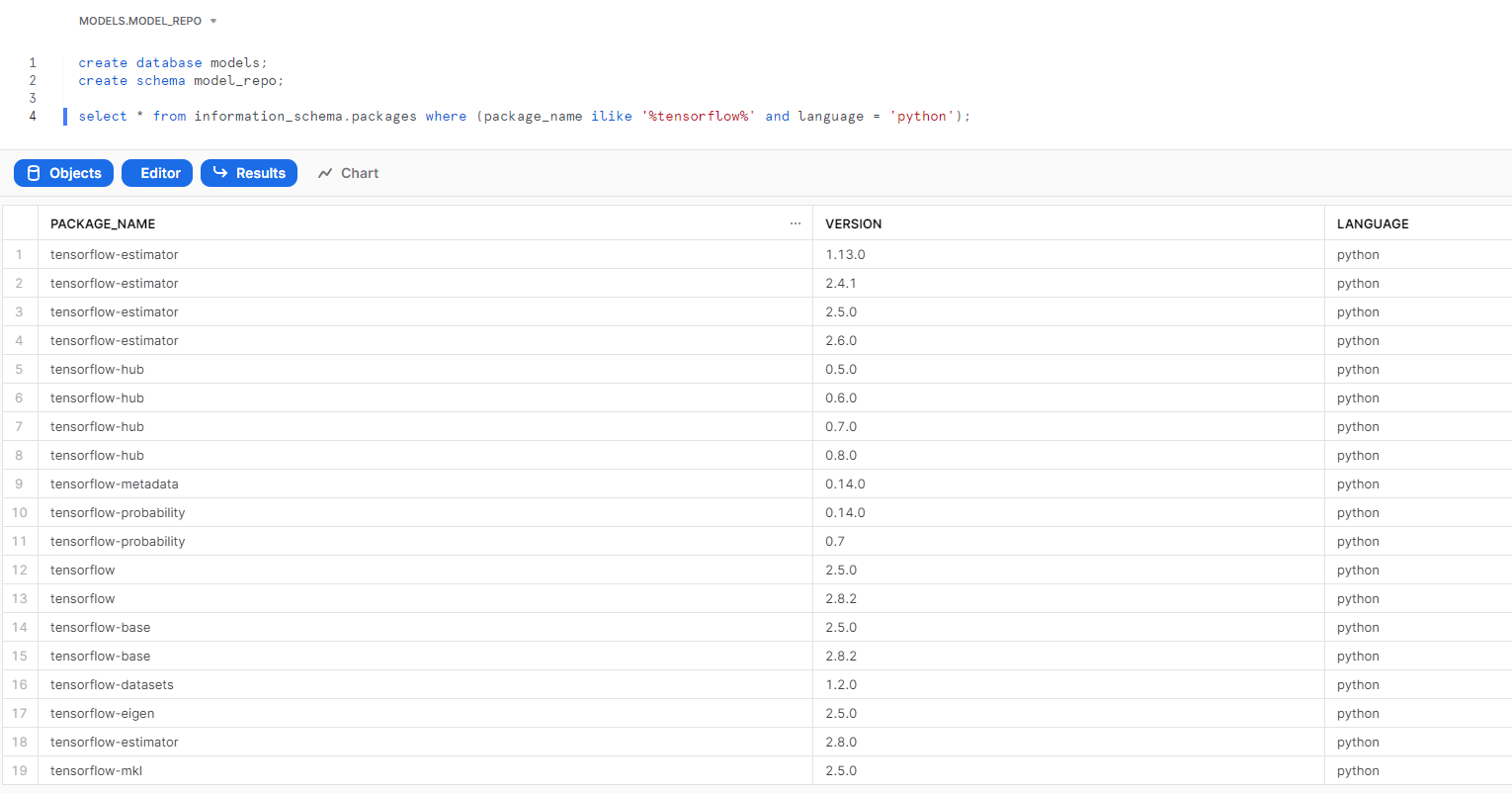
Once we’ve determined that the model is supported, we can download the TensorFlow Hub model locally.
Step 2: Prep + Upload the Model To Snowflake
The TensorFlow model will be compressed as a .tar.gz,
but we want to use .zip compression since that seems to be the preferred method in the Snowflake import file docs.
There are various ways to uncompress and compress files, but we’ll use Python again.
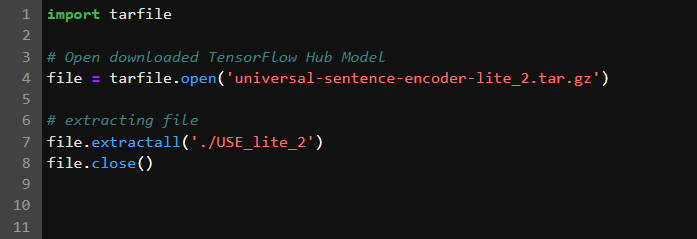
We’ll also make sure that the model is working after it has been unzipped in the script below.
This will also come in handy when we create our script for the Snowflake UDF.
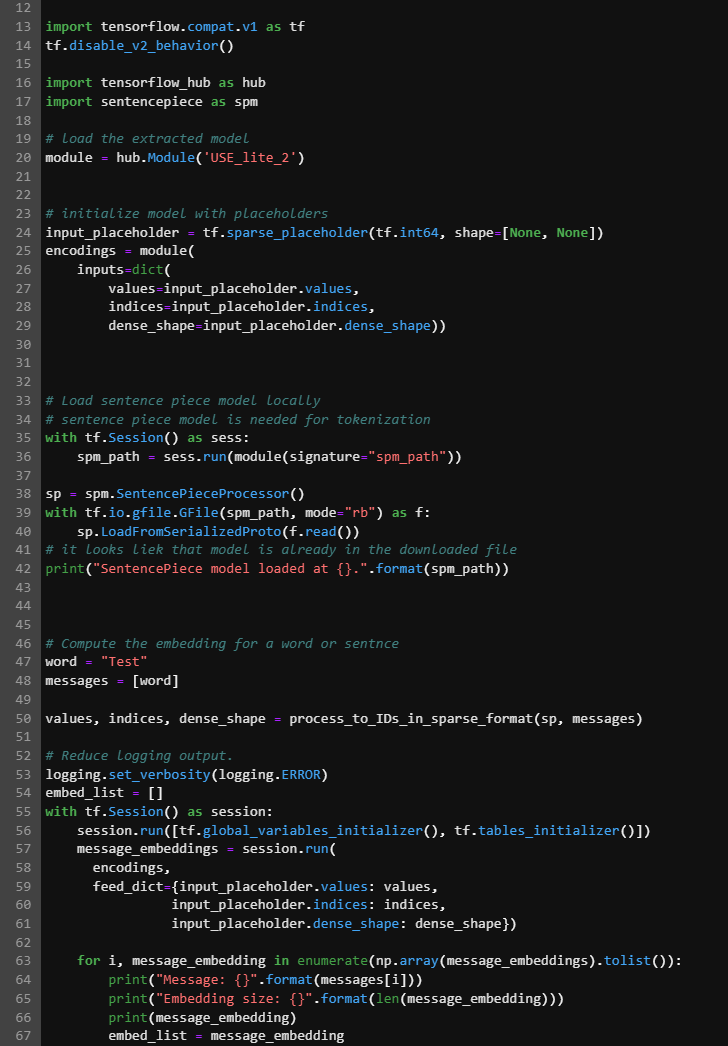
If the model is working, create a zip package:
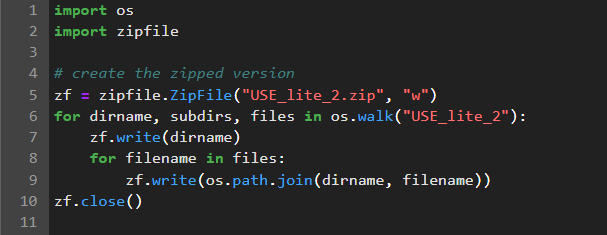
Then we can upload the zipped model to a Snowflake stage using SnowSQL.
We need to create a Snowflake stage before we can upload the model file.
In a Snowflake worksheet you can run:
create stage model_repo;
Then upload the file using SnowSQL from the command line:
To connect to Snowflake from SnowSQL:
snowsql -a wl02607.us-east-2.aws -u Prestontrial -P
Then enter your trial account password when prompted. Select the database and schema where you want the model to be saved.
Use the PUT command to upload the file (this can take a while for big models).
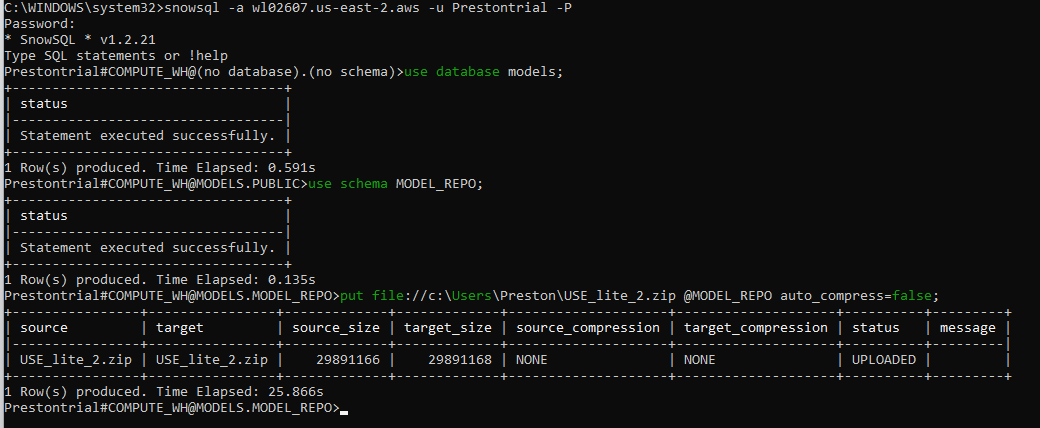
Now that we have the model in Snowflake, we just need to create a UDF to use the model.
Step 3: Create the Snowflake UDF
Before you can create the UDF you need to enable Anaconda python packages for your trial account by following these steps from Snowflake Using Thrid Party Packages In Snowflake
Once you have enabled Anaconda packages, you can create the Python UDF.
The main components of the UDF are:
- Specify the imports and zip files to load
- Start the UDF and import packages
- Read the zipped file from stage
- Save the zipped file locally to the UDF
/tempfolder - Read the zipped model file
- Use the model for inference for the input to the UDF
- Output an array of embeddings
See the full code on my GitHub page:
Github Examples
With a similar process, you can train and load your own TensorFlow models directly into Snowflake.