Machine Learning For Your Gaming PC
Mar 30, 2022
Set Up Docker, Windows 11, and Nvidia GPUs for machine learning acceleration.
Setting up local graphics cards (GPUs) to accelerate machine learning tasks can be tedious with
dependencies between GPU drivers, CUDA drivers, python, and python libraries to manage. With the
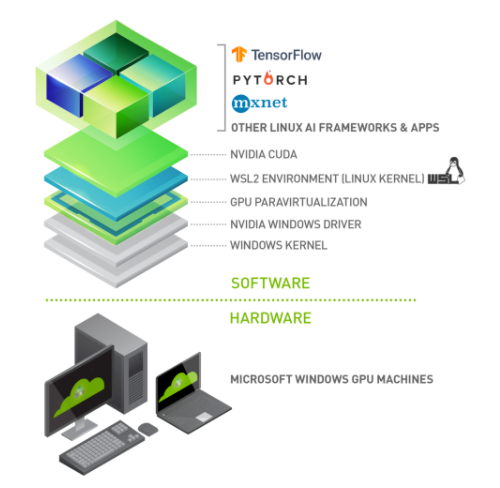
release of Windows 11, we can automatically handle dependencies between CUDA, Python, and deep
learning libraries such as Tensorflow, by using Docker. By using docker you can worry less about
driver compatibility issues between your drivers for gaming and drivers for deep learning workloads.
You can receive major benefits from GPU acceleration depending on what types of models that you run.
Transformers are a popular choice for many NLP tasks, however, even just fine tuning smaller transformers
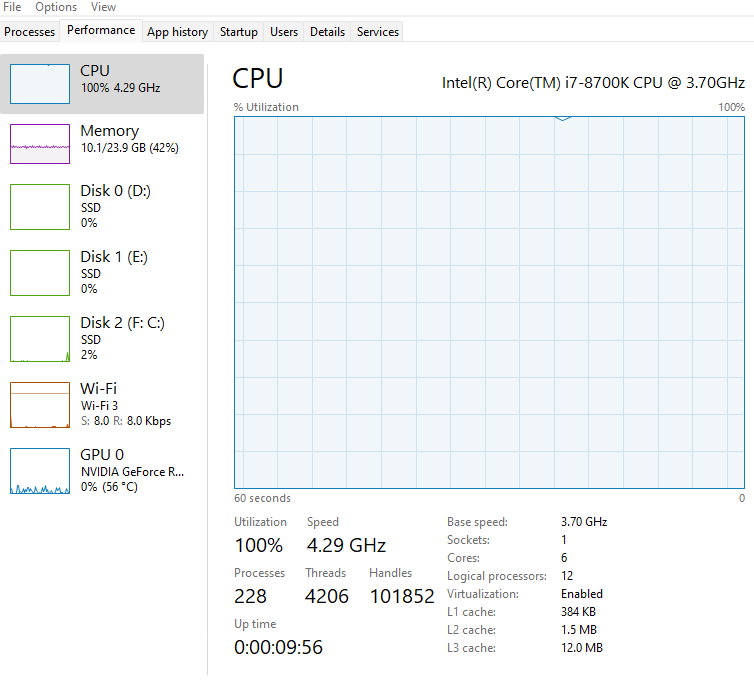
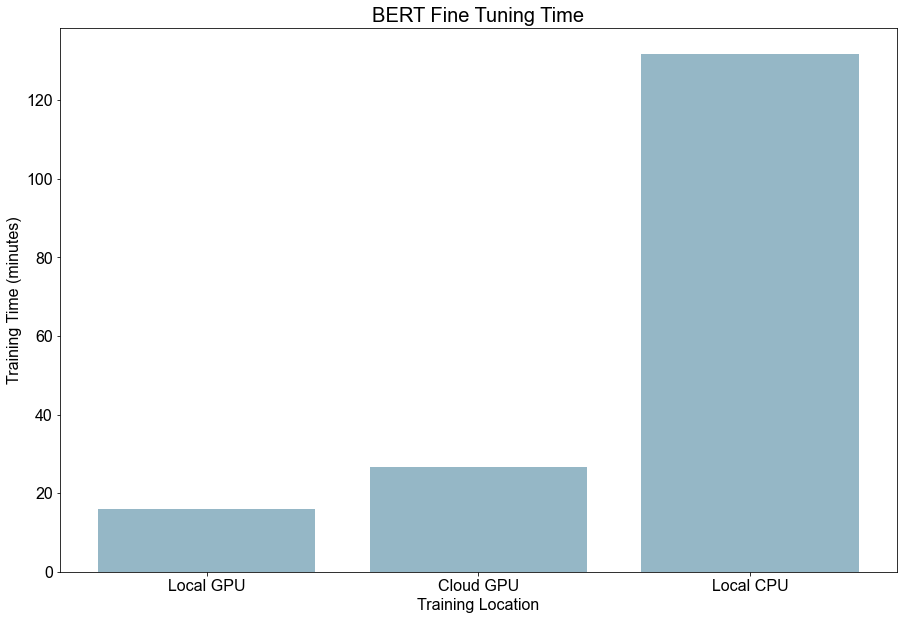
such as DistilBERT can take hours if you are only using your computer's CPU. The results of training a
Small BERT model on my CPU, GPU, and Google Colab are shown below. By switching to my GPU I was able to
fine-tune the model in minutes instead of hours. All the notebooks I used for testing are in this
Github Repo - ML Training Notebooks
Furthermore, the current trend in machine learning is to train larger and larger models to achieve
higher accuracy, which in turn take longer to fine-tune. As models get larger, fine-tuning using
GPU accelerated training will become more and more necessary. The figure below compares some
high-performing models over the last decade. I recommend taking a look at more models on Papers
with Code and comparing the size of the recent top-scoring models with older models for yourself.
apersWithCode Imagenet Comparison

Overview of setup
There are a lot of good resources for different elements of this setup, so I'll focus on bringing all of the components together in a step by step guide. For this walkthrough I'll go through upgrading to Windows 11 from Windows 10 (not required, but recommended) and setting up docker to run TensorFlow on a Jupyter notebook.
Part 1 Upgrading to Windows 11
(skip if you already have W11)
Check Windows 11 compatability:
There are a few things to check to make sure that you can upgrade
to Windows 11. There are workarounds for some of the requirmeents,
but the requirements are good security features to have enabled.
You can check your PC using PC Health Check
Two new requirements for Windows 11 are secure boot and TPM 2.0 which may
not be enabled on older computers.
If your PC fails any of the PC health checks follow the steps below.
Otherwise skip to the next section.
- Setting up Secure Boot
You'll need to enable secure boot in your computers bios. Follow allong with this video to set it up if it isn't already - Secure Boot Setup - YouTube
- Enable TPM 2.0
Check processor compatibility. If the processor is compatible then you should be good to go, but there may be some bios options that need to be changed TMP 2.0 will be called PTT for intel chips. Checkout this video for how to setup TMP 2.0. TMP 2.0 Setup - YouTube
- Download windows 11
Windows 11 still not officially rolled out to some PCs like mine, so you might need to download it form their site here - Windows 11 Install
Part 2 Setup docker for GPU
Requirements
1. WSL-2
2. Docker Desktop
3. Nvidia GPU Driver
Make sure WSL-2, Docker, and Nvidia drivers are up to date
1. Install or Update WSL-2
run wsl -l -v in terminal to check your WSL version. It should show version 2.
Also update WSL to the latest version with this command in the terminal wsl --update . (my version was 5.10.102.1)
If it isn't installed follow this documentation WSL Install Guide
2. Install and Update Docker Desktop
Follow the doces to install docker or update through the Docker desktop app. (my version was 4.6.1) Docker Install Guide
3. Update NVIDIA Driver
If you are using a PC for gaming just make sure your graphics card is updated in the GeForce Experience desktop app. (my version was 512.15 ) Nvidia GeForce App
Part 3 Test and Setup Jupyter Notebook
Once all of your apps are up to date test out if docker can detect your GPU
In the terminal run docker run --gpus all nvcr.io/nvidia/k8s/cuda-sample:nbody nbody -gpu -benchmark
If Docker can detect your GPU you can try to spin up a docker container with jupyter notebook and
TensorFlow to test if TensorFlow can detect your GPUs:
docker run -it --gpus all -p 8888:8888 tensorflow/tensorflow:latest-gpu-jupyter
Check out the full Nvidia guide here:
Nvidia WSL Guide
And the list of TensorFlow tested containers here:
Official TensorFlow Docker Images
Next you'll probably want to mount a volume so you can access your existing Jupyter notebooks
and save your Jupyter notebooks outside of docker
In the terminal run:
docker run -it --gpus all --rm -v C:\Users\your_username\your_jupyter_notebook_folder/:/tf/local_notebooks -p 8888:8888 tensorflow/tensorflow:latest-gpu-jupyter
To break down the command:
docker run runs docker containers
-it basically makes the container look like a terminal connection session
--gpus all assigns all available gpus to the docker container
--rm automatically clean up the container and remove the file system when the container exits
-v for specifying a volume
C:\Users\your_username\your_jupyter_notebook_folder Local filepath that to use. This will be wherever you normally save your jupyter notebooks.
/tf/local_notebooks The filepath in docker
-p expose ports, jupyter notebooks run on port 8888 by default so we
map port 8888 from the container to our local host to keep things simple
tensorflow/tensorflow:latest-gpu-jupyter The image that we want to build. This comes
pre-setup from tensorflow, but we can modify it needed.
Testing
For my testing I copied a TensorFlow tutorial for fine tuning BERT for sentiment analysis on the imbd movie dataset. I also compared the performance to a Google Colab notebook with a free cloud GPU. My results are show below, and the notebooks can be found on GitHub. GitHub Notebooks
Testing Results:
Local GPU Time:
~2:40 minutes per epoch
Total Time: 16.1 minutes
Local CPU Time:
~22:00 minutes per epoch
Total Time: 131.8 minutes
Google Colab Time:
~4:30 minutes per epoch
Total Time: 26.6 minutes
My System
CPU: Intel i7-8700K
GPU: Nvidia RTX 2070
RAM: 24 GB
All tests were based on this notebook from TensorFlow:
TensorFlow BERT Fine Tuning
GPU Training
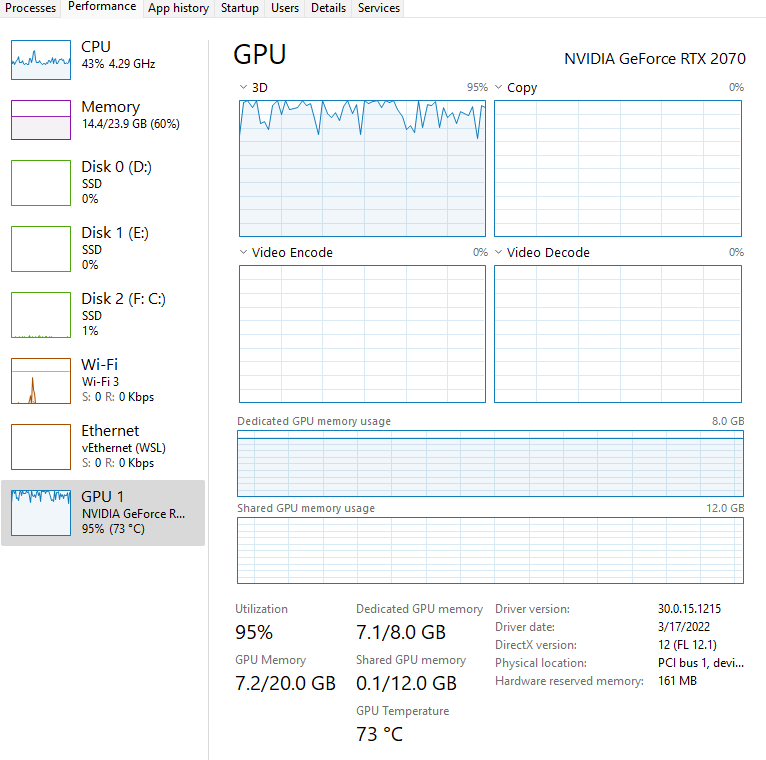
CPU Training